SolarWatch User Guide
- AR
- Classic Solar Data
- Current
- Daylight
- Solar Eclipses
- Light Remaining
- Magic Light
- Noon/Midnight
- Muslim Prayer Times
- Sunrise & Sunset Quality
- Seasons
- Shadows
- Solar Alarms
- Solar Wheel
- Sunrise & Sunset
- Twilights
- UV & Vitamin D
- Yearly Overview
- Start here
- Add and choose cities
- Edit the dashboard
- Choose your tiles
- Add iPhone widgets and Watch complications
- Create and manage solar alarms
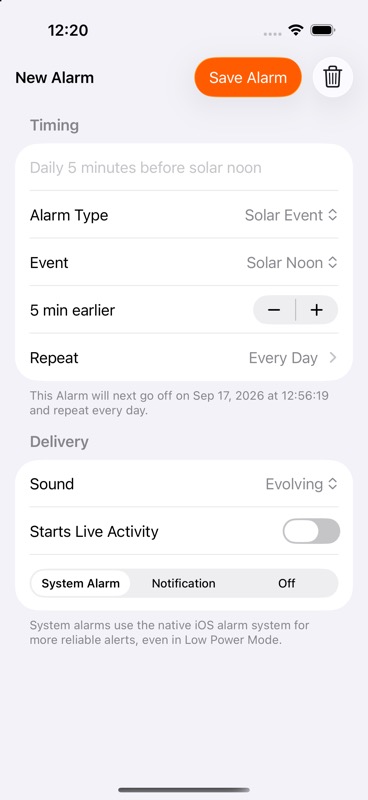
- Timing options
- Title: give the alarm a name, or leave it blank to use the suggested event name.
- Repeat: select Every Day or individual weekdays. The displayed next occurrence helps confirm your choice.
- Solar Event: choose sunrise, sunset, solar noon/midnight, twilight, or golden/blue hour events.
- Minimum Quality: where offered, only alert when the forecast reaches your selected quality threshold. Higher thresholds mean fewer alerts; unavailable or low forecasts can prevent an occurrence.
- Prayer Time: choose a prayer. Add Muslim Prayer Times to a dashboard layout to make this alarm type available.
- Azimuth: choose a compass direction. North is 0°, east 90°, south 180°, and west 270°.
- Elevation: choose how high the sun is above the horizon and whether it is rising, setting, or either.
- Shadow Ratio: choose shadow length relative to an object's height, and a rising/setting direction. A ratio of 2 means a shadow twice the object's height.
- Use terrain horizon: where offered, account for the surrounding terrain. This requires Gold and enables terrain downloads. Without it, timing uses an ideal open horizon.
Delivery and troubleshooting
System Alarm uses the native iPhone alarm system on supported iOS versions and requires alarm permission. Notification delivers a less intrusive alert; notification permission, Focus, and Low Power Mode can affect delivery. Choose a sound; None is available for notification delivery. Starts Live Activity opens an activity when the alarm fires.
If an alarm is missing, check its switch, delivery method, repeat days, permissions, current location, and next occurrence. Certain directions, heights, or solar events may not be reached on the chosen day. If Gold has expired, the alarm screen can show disabled alarms and a Reactivate Alarms option after you restore access. When an alarm arrives on Apple Watch, tap Open as prompted so the next alarm can be scheduled.
SolarWatch User Guide · Choose your tiles
Create and manage solar alarms