SolarWatch User Guide
- AR
- Classic Solar Data
- Current
- Daylight
- Solar Eclipses
- Light Remaining
- Magic Light
- Noon/Midnight
- Muslim Prayer Times
- Sunrise & Sunset Quality
- Seasons
- Shadows
- Solar Alarms
- Solar Wheel
- Sunrise & Sunset
- Twilights
- UV & Vitamin D
- Yearly Overview
- Start here
- Add and choose cities
- Edit the dashboard
- Choose your tiles
- Add iPhone widgets and Watch complications
- Create and manage solar alarms
- Timing options
- Tap Search, the magnifying glass.
- Enter a city or place name and choose the matching result to open it.
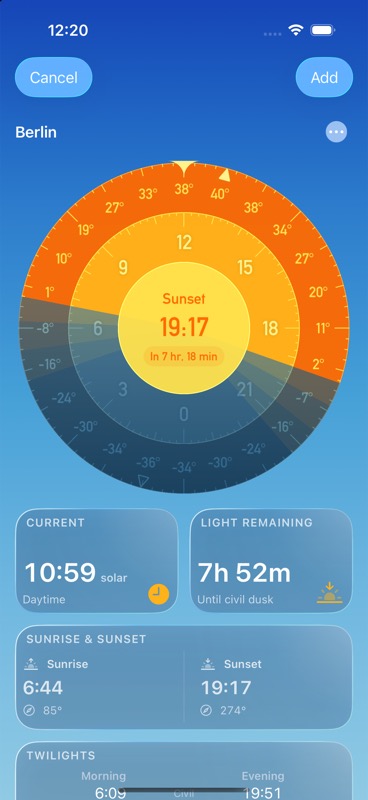
- Tap Add in the location preview to save the place to Favorites, then choose it from your saved locations.
For an exact spot, tap the map button beside a search result. Move the map until its center is over your location, enter a name, and tap Add Location to Favorites. If the app warns that another favorite is nearby, choose Add Anyway only if you want both places.
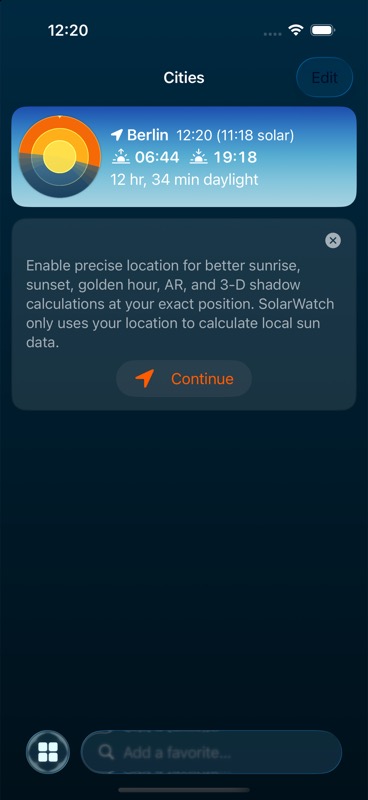
Current Location follows you as you move; a saved city stays in the same place. Allow location access when you want SolarWatch to use your current position. If that position is wrong, check SolarWatch's location permission in the iPhone Settings app, including Precise Location. You can still look up cities manually.
SolarWatch User Guide · Choose your tiles