SolarWatch User Guide
- AR
- Classic Solar Data
- Current
- Daylight
- Solar Eclipses
- Light Remaining
- Magic Light
- Noon/Midnight
- Muslim Prayer Times
- Sunrise & Sunset Quality
- Seasons
- Shadows
- Solar Alarms
- Solar Wheel
- Sunrise & Sunset
- Twilights
- UV & Vitamin D
- Yearly Overview
- Start here
- Add and choose cities
- Edit the dashboard
- Choose your tiles
- Add iPhone widgets and Watch complications
- Create and manage solar alarms
- Timing options
Widgets let you check SolarWatch without opening the app. Start with a sunrise/sunset or solar wheel widget.
- Touch and hold an empty area on your iPhone Home Screen.
- Tap Edit → Add Widget (or the plus button on older iOS versions).
- Search for SolarWatch, swipe to a style and size, tap Add Widget, then Done.
Touch and hold an added widget and choose Edit Widget to change its location or other options when offered. Save cities in SolarWatch first so you can select them. For a Lock Screen widget, touch and hold the Lock Screen, choose Customize → Lock Screen, tap its widget area, and select SolarWatch. The space available determines which styles fit. Apple's widget instructions.
Apple Watch
Install SolarWatch on your paired Watch and open it once. Touch and hold the watch face, tap Edit, swipe to complications, tap a position, and select a SolarWatch complication. Press the Digital Crown to finish, then tap the face. You can also choose complication positions in the Watch app on iPhone. Apple's watch face instructions.
A complication is a small display on your watch face. Choices include sunrise/sunset, next solar events, solar wheel, solar time, sun elevation or direction, and eclipse countdown, where supported. Different faces and positions offer different choices.
Widget options and missing data
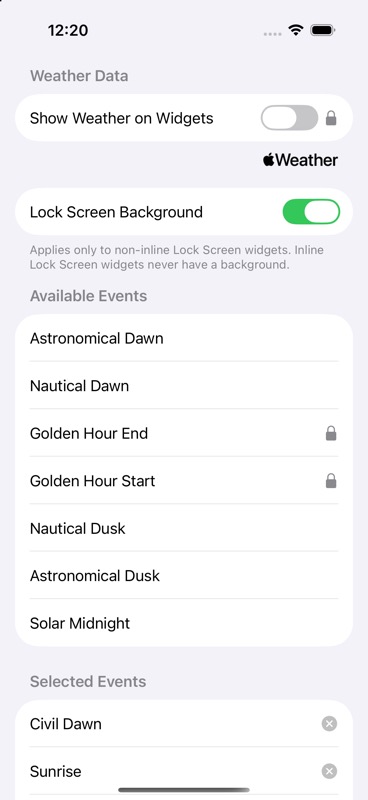
In SolarWatch Settings → Widgets & Complications, choose whether to show weather, set the background for non-inline Lock Screen widgets, and choose and arrange the solar events used by configurable event displays. There are also widgets for favorites, sun position, UV, seasons, and eclipse countdowns. Check the widget gallery for the styles available on your device.
If SolarWatch is missing from the gallery, open the app once and try again. For missing location data, check the widget's selected city and the app's location permission. Widgets refresh periodically and can lag behind the app; open SolarWatch to check the latest information.
SolarWatch User Guide · Choose your tiles