SolarWatch User Guide
- AR
- Classic Solar Data
- Current
- Daylight
- Solar Eclipses
- Light Remaining
- Magic Light
- Noon/Midnight
- Muslim Prayer Times
- Sunrise & Sunset Quality
- Seasons
- Shadows
- Solar Alarms
- Solar Wheel
- Sunrise & Sunset
- Twilights
- UV & Vitamin D
- Yearly Overview
- Start here
- Add and choose cities
- Edit the dashboard
- Choose your tiles
- Add iPhone widgets and Watch complications
- Create and manage solar alarms
- Timing options
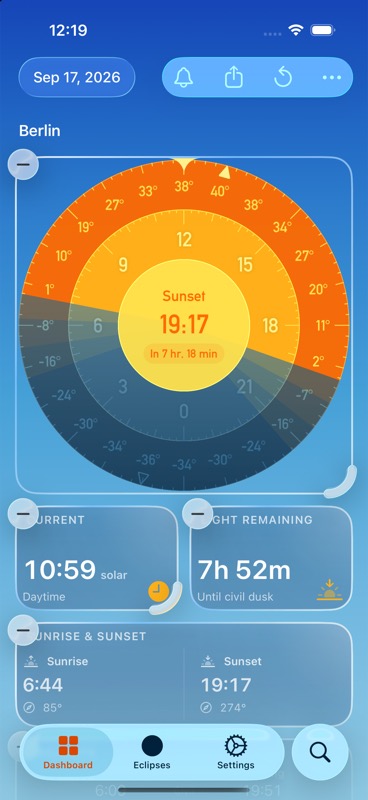
- Tap the three-dot menu and choose Edit Dashboard. You can also touch and hold a tile and choose Edit Dashboard.
- Drag tiles to change their order. Tap a tile's minus button to remove it.
- Drag its corner handle to choose a supported size. You can also touch and hold a tile outside editing mode and choose one of its available sizes.
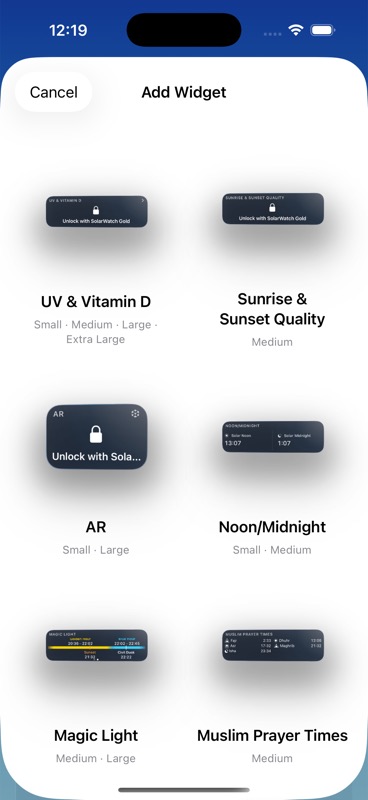
- Tap Add Widget, choose a tile and size, then add it. Tap Done when finished.
Here, Add Widget adds a tile inside SolarWatch. To put a widget on your iPhone Home Screen, follow the widget instructions Add iPhone widgets and Watch complications.
Each tile can appear once in a layout. Removing it hides the tile; it does not delete its underlying information or your alarms. Reset This Layout restores the default arrangement. Compact and wider layouts can have different arrangements, so check the layout you are currently using. Extra Large needs enough screen width to show its full width.
On iPhone Duo, unfold the phone to keep the Solar Wheel beside your dashboard tiles. Stand it partly folded in tent mode for a full-screen animated dashboard.
SolarWatch User Guide · Choose your tiles · Add iPhone widgets and Watch complications